JOREK Case
In this example, we will visualize a JOREK disruption case. A number of JOREK disruption cases are available on this confluence page (behind login wall). We will visualize the electron temperature from the plasma_profiles IDS and the corresponding current magnitude in the inner vacuum vessel of the wall IDS. We will create an animation to visualize how these change over time.
You can download the ParaView state file for this example here. However, we recommend that you manually follow the steps outlined below.
Loading the Electron Temperature
In this subsection, we load the JOREK grid and visualize the electron temperature on this grid.
The JOREK grid uses a combined finite-element and Fourier-series discretization. Bicubic finite elements describe fields in the poloidal plane, while a Fourier series handles variation in the toroidal direction. The standard GGD reader cannot process this grid structure, therefore, the JOREK reader was made available to load JOREK datasets. To load it, navigate to Sources > IMAS Tools and select the JOREK Reader.
Instead of loading the data set by entering the URI, we will now manually input the required fields. To do so, select the
Enter pulse, run, ..option in the Data entry URI dropdown. Fill in the following fields, and then pressApplyto load the URI:Backend
HDF5
Database
ITER_DISRUPTIONS
Pulse
112111
Run
2
User
public
Version
4
Select the
plasma_profiles/1IDS in the IDS/Occurrence dropdown menu. Please refer to the confluence page for the meaning of different occurrences for this dataset.Select
Applyto load the plasma profiles GGD grid. Note: this dataset is quite large (~9GB) so it might take some time to load.After the GGD grid is loaded, bring the grid into view by aligning the viewpoint in the positive Y direction using the following button:
 .
.Select the
Electrons Temperaturefrom the attribute array selection window.Select
Applyto load the electron temperature values on the grid.Select
Electrons Temperature [eV]in the coloring dropdown to visualize the electron temperature.Enable log scale coloring by selecting
Editunder the Coloring section. In the Color Map Editor on the right, enableUse Log Scale When Mapping Data To Colors.Set the
N planeto 3 and thePhi rangefrom 0 to 180 degrees in the Bezier interpolation settings.
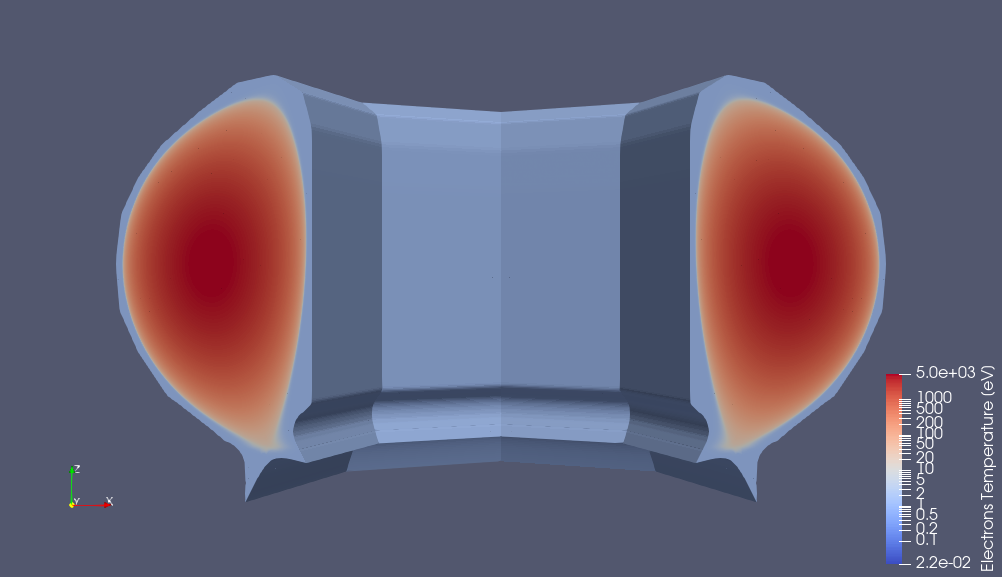
JOREK GGD showing the electron temperature. Data provided by J. Artola.
Loading the Wall Current
In this subsection, we load the wall currents in the inner vacuum vessel using the GGD Reader and apply a clip mask.
Navigate to Sources > IMAS Tools and select the GGD Reader.
We will now load the same data entry as in the previous subsection, but we will enter it using the URI string option. To do so, enter the following URI in the
Enter URIfield of the GGD reader plugin, and pressApply:imas:hdf5?user=public;pulse=112111;run=2;database=ITER_DISRUPTIONS;version=4Select the
wallIDS in the IDS/Occurrence dropdown menu.Select
Applyto load the wall grid.Select
J_totalfrom the attribute array selection window.Select
Applyto load the current on the wall GGD grid.Select
Description_ggd J_total [A.m^-2]in the coloring dropdown and selectMagnitudeto visualize the total wall current.As the wall shows an enclosed surface that is hard to see, apply a clip filter to the wall grid. To do this, select the clip filter:
 .
.Set the normal vector to
0, -1, 0and selectApplyto apply the filter.To distinguish between the wall currents and the electron temperature grid, change the wall current color map. Edit the color map, select
Select a color map from default presets, and choose a different color map.
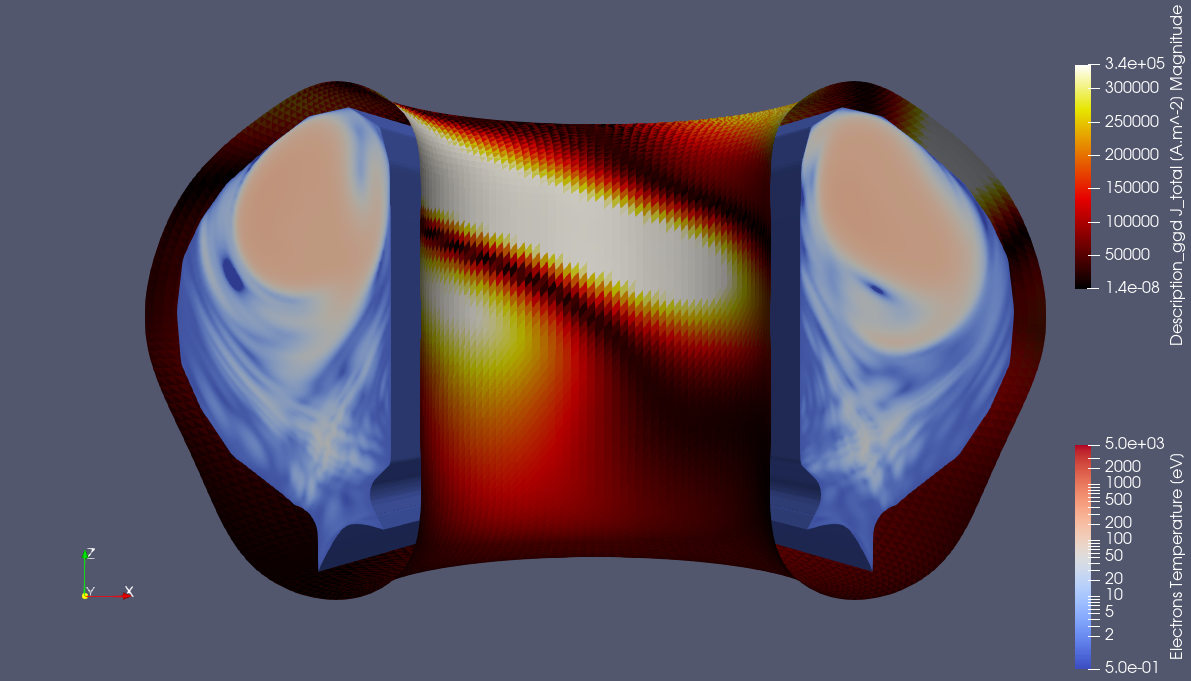
JOREK GGD showing the electron temperature surrounded by total current in the inner vacuum vessel (t=0.309984). Data provided by J. Artola.
Temporal Interpolation and Animation
In this subsection, we create an animation of the loaded electron temperature and wall currents. We interpolate the time basis of both plugins to a linearly spaced basis.
To visualize the current time in the video, add a time value in the corner of the viewer using Sources > Annotation > Annotate Time. Press
Applyto apply the time annotation source.Select the JOREKReader and apply a
Temporal Interpolatorfilter found under Filters > Temporal > Temporal Interpolator.Set the
Discrete Time Step Intervalto 0.01, and selectApplyto apply the temporal interpolation.Now we will do the same for the wall currents. Select the created Clip filter and apply another
Temporal Interpolatorfilter found under Filters > Temporal > Temporal Interpolator.Set the
Discrete Time Step Intervalto 0.01, and selectApplyto apply the temporal interpolation for the wall currents.Right click on the clip filter in the pipeline, and deselect the
Ignore Timecheckbox.Verify that both temporal interpolators are working by opening View > Time Manager and checking if the two temporal interpolators have the same number of time steps and that the time steps are of equal size.
Create an animation of the JOREK electron temperature and wall currents over time. Place the objects in the viewpoints in the desired orientation for the video. To create a video, go to File > Save Animation, provide a directory and a name for the video, and select
OK.In the pop-up window, video settings such as image resolution and compression can be changed. In this example, we set the frame rate to 5 and the frame window from 25 to 50. Press
OKto start generating the animation. This may take a while.
The resulting animation is shown below:
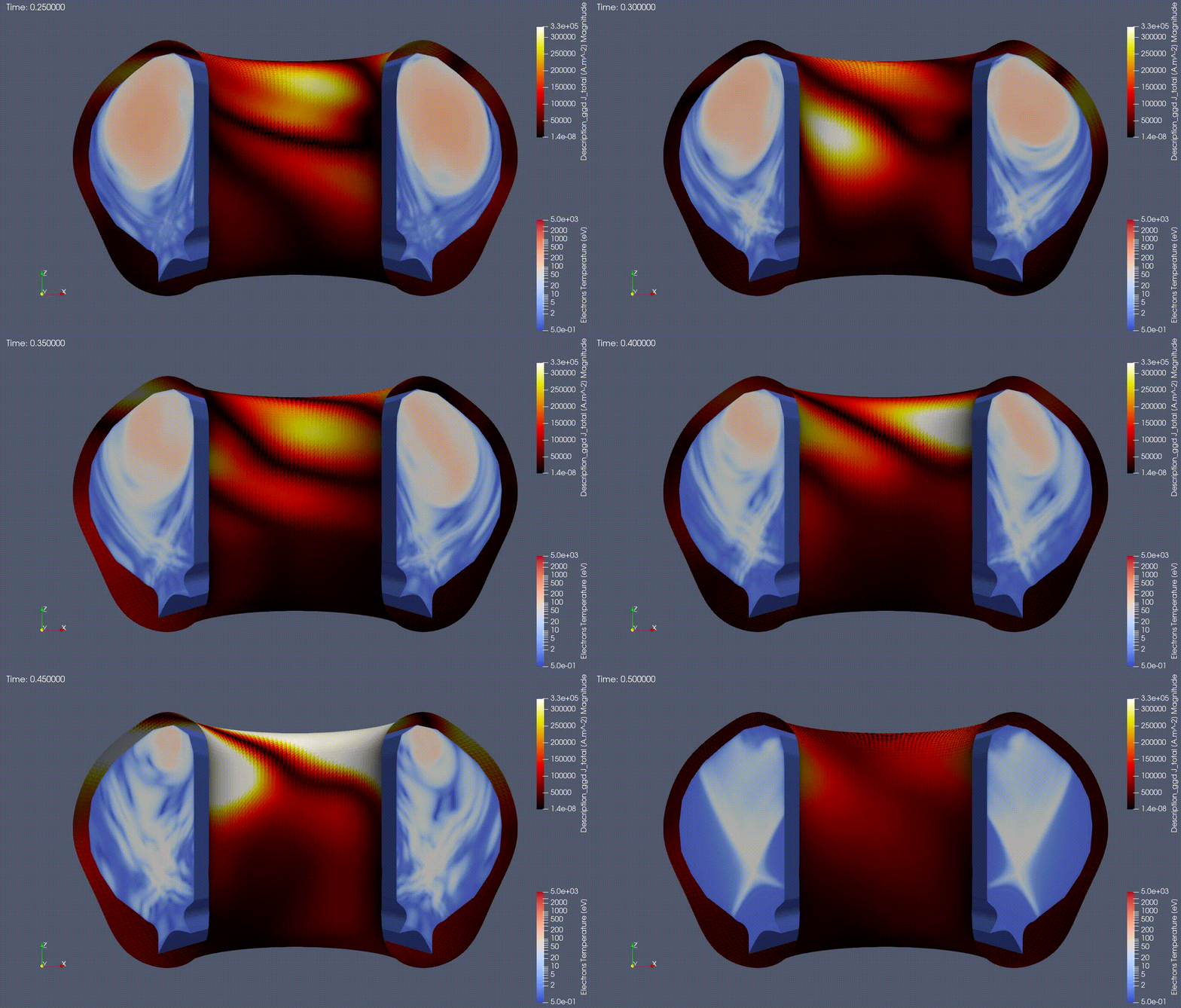
Animation of the electron temperature and wall currents. Data provided by J. Artola.