Camera Reader
New in version 2.4.0.
This page explains how to use the Camera Reader to visualize camera optical geometries different IDSs containing camera data.
Note
The Camera Reader does not visualize any image data recorded by the camera.
Supported IDSs
Currently, the following IDS and structures are supported in the Camera Reader:
IDS |
Structure |
|---|---|
|
Camera channels (available in Data Dictionary |
|
Using the Camera Reader
The Camera Reader functions similarly to the GGD Reader, with the same interface and data loading workflow. This means that the steps for loading an URI, an IDS, and selecting attributes are identical. Refer to the GGD Reader for detailed instructions on:
Loading an URI: How to provide the file path or select a dataset.
Loading an IDS: How to load a dataset and display the grid.
Selecting attribute arrays: How to choose which cameras to visualize.
Snapping the View to a Camera
The Snap View to Camera widget lets you align the active ParaView RenderView with any loaded camera so that the viewport matches the camera's optical position and field of view.
Note
The camera snapping feature only works when running ParaView in standalone mode. It is not available if you are running in client–server mode.
To snap the view:
Load and apply the Camera Reader with at least one camera selected.
In the Snap View to Camera section of the Properties panel, choose the desired camera from the Select Camera drop-down menu.
Select Apply to confirm the selection.
Press the Snap View to Camera button.
The ParaView camera will immediately move to the position and orientation of the selected IDS camera.
Note
The Camera Reader cannot change the active RenderView’s aspect ratio and will use either the horizontal or vertical field of view, based on the current viewport size. The remaining axis will not match and must be adjusted manually to align with the camera’s view, the camera view can be used as a guide for this.
Example Case
The following figure shows the Camera Reader applied to an camera_visible IDS,
showing a single camera pointing at the divertor. The following URI was used for this
example:
imas:hdf5?path=/work/imas/shared/imasdb/ITER_MACHINE_DESCRIPTION/3/150701/1002
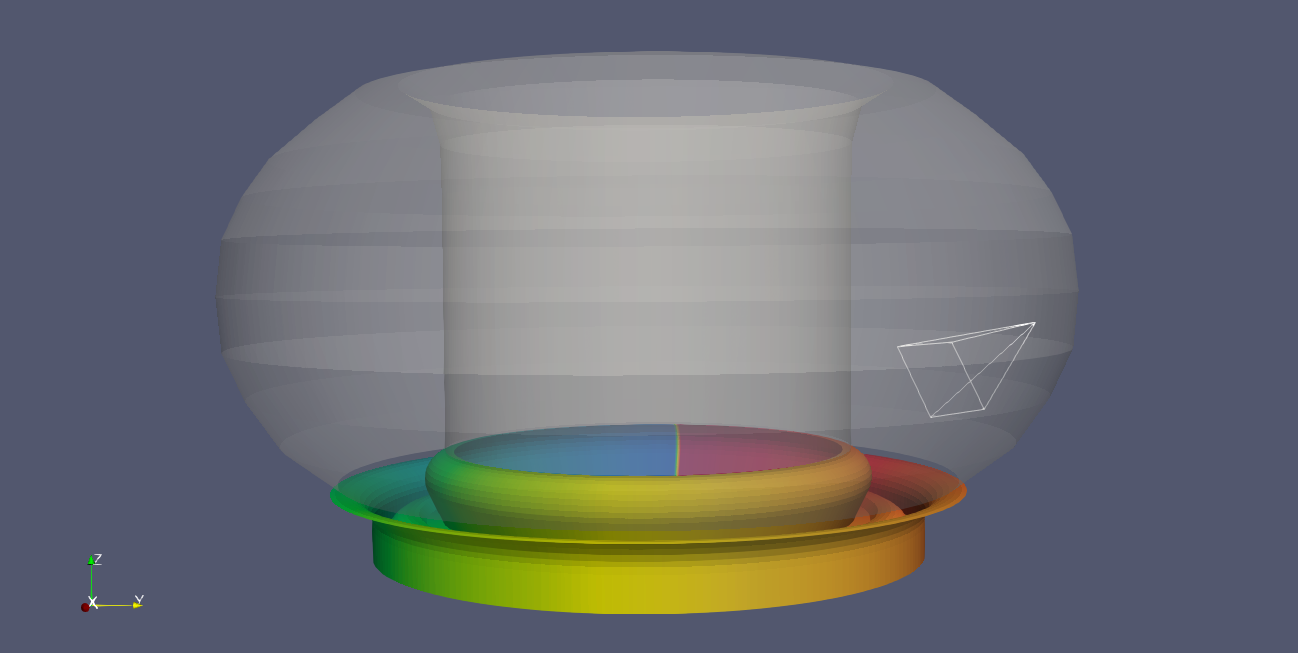
Wireframe of the camera view, along with the first wall and divertor structures visualized using the Wall Limiter Reader in white and rainbow colors, respectively.
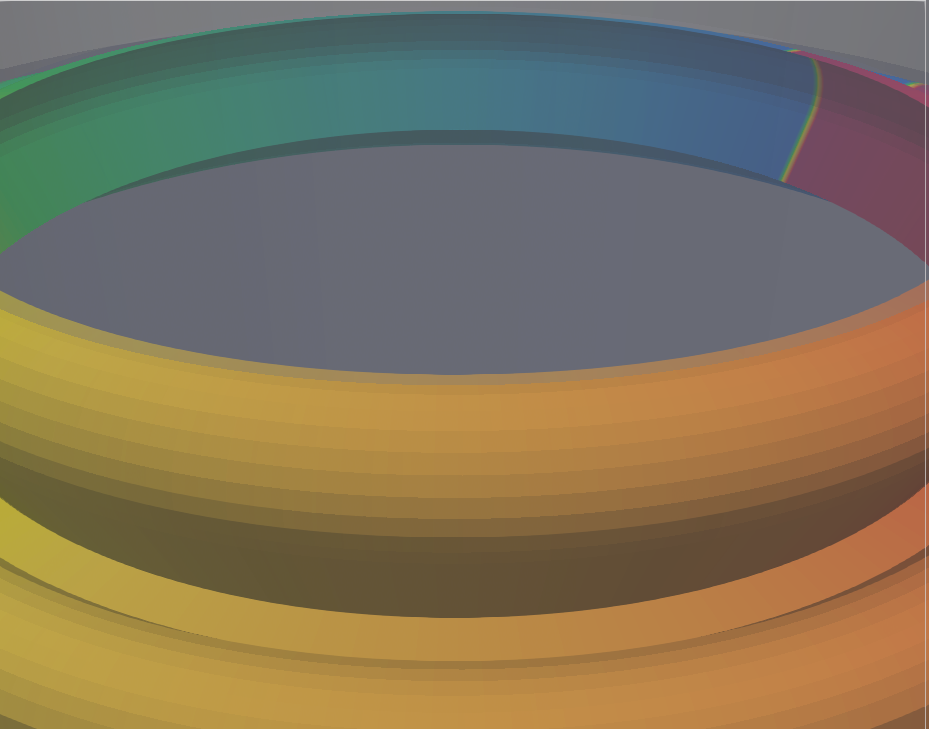
ParaView's RenderView when snapping to the camera above.